
|
Pardon the dust! This page includes some jargon that hasn't been added to the site's glossary yet. I'll be around to fix this later, but sorry for the inconvenience in the meantime. |
Introducing FreeDOS
Meet FreeDOS
Many of the people who used computers during the 1980s and 1990s remember working with MS-DOS, though whether they think of those days fondly or not largely depends on who you asked. But one thing is unmistakably clear: when it came to early PC gaming, MS-DOS was the undisputed king.
Today, most of the people who want to revisit the days of DOS gaming typically use DosBox to emulate a DOS environment, but there is another option for the more daring users - FreeDOS.
FreeDOS is a complete open source DOS system, updated with many improvements and new features that either never existed in MS-DOS, or were never so easy to use.
Keep in mind that running an actual DOS operating system is mostly unnecessary for playing old games, and depending on the hardware you're running it on (eg, VirtualBox, which has no MIDI support), you might be better off using another method.
But for those of you who'd like to experience the "joy" of working with DOS, this guide will help you test the waters with this modern version.
Note that this page assumes you've already installed your copy of FreeDOS in a VirtualBox virtual machine, as covered in this guide.
Today, most of the people who want to revisit the days of DOS gaming typically use DosBox to emulate a DOS environment, but there is another option for the more daring users - FreeDOS.
FreeDOS is a complete open source DOS system, updated with many improvements and new features that either never existed in MS-DOS, or were never so easy to use.
Keep in mind that running an actual DOS operating system is mostly unnecessary for playing old games, and depending on the hardware you're running it on (eg, VirtualBox, which has no MIDI support), you might be better off using another method.
But for those of you who'd like to experience the "joy" of working with DOS, this guide will help you test the waters with this modern version.
Note that this page assumes you've already installed your copy of FreeDOS in a VirtualBox virtual machine, as covered in this guide.
Key Differences Between FreeDOS and MS-DOS
As mentioned above, FreeDOS has incorporated a number of quality of life improvements that MS-DOS lacks. Part of this is because Microsoft abandoned DOS development decades ago, so their classic operating system is limited to what it was back then.
Computers today are very different from what MS-DOS expected. Thus, most of the improvements FreeDOS has made are under the hood - things like built in support for a mouse and hard drives larger than 2 GB. CD-ROM and networking support are also automatically configured when possible.
But perhaps the most notable tweak is found on the command line itself: FreeDOS keeps your recently used commands in a buffer that you can scroll through using the up and down arrow keys. If you've used a command line for anything in the last decade, you've probably used this feature already. It's something we take for granted now, which makes one wonder how we used DOS without it.
FreeDOS also features some new commands on top of the classic DOS listing. You'll need to use two of these to control your FreeDOS system - shutdown and reboot. They do exactly what you'd expect, and are the intended way to turn off your FreeDOS computer or virtual machine.
Computers today are very different from what MS-DOS expected. Thus, most of the improvements FreeDOS has made are under the hood - things like built in support for a mouse and hard drives larger than 2 GB. CD-ROM and networking support are also automatically configured when possible.
But perhaps the most notable tweak is found on the command line itself: FreeDOS keeps your recently used commands in a buffer that you can scroll through using the up and down arrow keys. If you've used a command line for anything in the last decade, you've probably used this feature already. It's something we take for granted now, which makes one wonder how we used DOS without it.
FreeDOS also features some new commands on top of the classic DOS listing. You'll need to use two of these to control your FreeDOS system - shutdown and reboot. They do exactly what you'd expect, and are the intended way to turn off your FreeDOS computer or virtual machine.
Boot Options
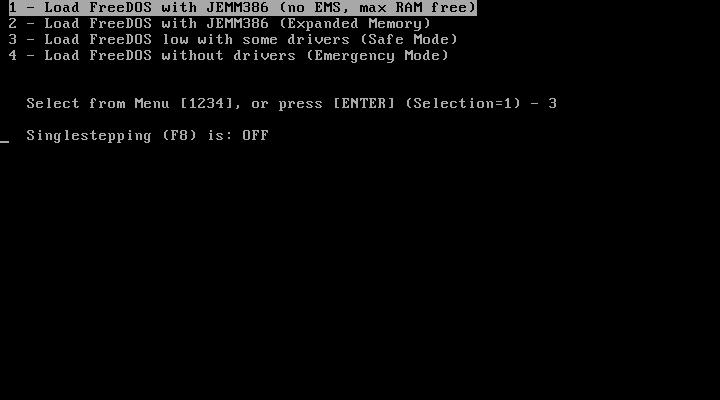
The FreeDOS boot menu
In a nutshell, computers have always needed to know how to manage their hardware, including RAM. Modern systems do this behind the scenes, so their users will likely never need to think about the details. DOS didn't have this luxury.
Back then, things were much less standardized, and this led to multiple competing methods of dealing with memory. While DOS programs were guaranteed access to the first 640 KB, known as conventional memory, their ability to access the rest depended on tools known as "DOS Extenders" or "Extended Memory Drivers".
FreeDOS helpfully comes with JEMM386, an open source memory manager. When you start FreeDOS, you can choose whether or not to have this tool loaded. If you do, then it will supply extended memory services to the system.
Since most commercial games for DOS included their own memory managers, like DOS4GAMES or CWSDPMI, using JEMM386 is optional.
Meet FDimples - a DOS package manager
Much like a Linux distro, FreeDOS comes equipped with a package manager that lets you select and install software from pre-made packages. In this case, the package manager is called FDimples, and it's much easier to use than you'd expect.
To start using it, insert your FreeDOS CD-ROM into your computer and then enter fdimples at the prompt. FDimples will check the CD-ROM for available packages, and then present you with the software selection menu.
Note that you can choose to install a single item (via the right panel) or an entire category (via the left panel).
Alternatively, if you want to exit without making any changes, you can do so at any time by pressing ESC.
To start using it, insert your FreeDOS CD-ROM into your computer and then enter fdimples at the prompt. FDimples will check the CD-ROM for available packages, and then present you with the software selection menu.
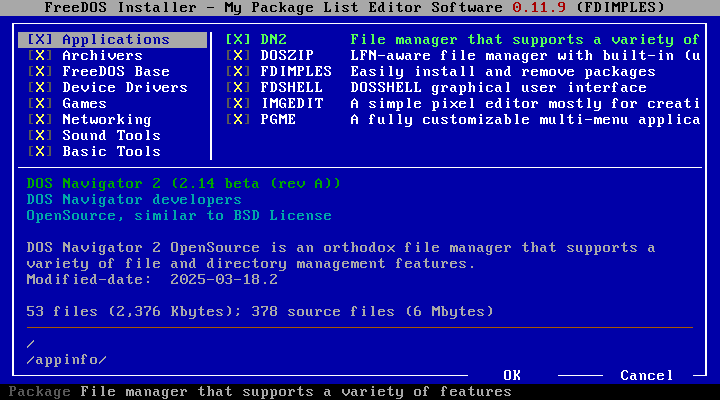
FDimples showing everything is already installed.
Note that you can choose to install a single item (via the right panel) or an entire category (via the left panel).
Alternatively, if you want to exit without making any changes, you can do so at any time by pressing ESC.
Going Online
It's probably safe to assume that many people believe DOS came from a time before the internet. To some degree, they're right - the internet didn't really come to the average person until the fall of 1993, and by then the DOS era was already on its way out.
But it is possible for DOS to go online with the right setup, and with FreeDOS, it may even be online already. If you used the "Full Install" option when creating your VirtualBox virtual machine, then the FDNet package has already been installed and configured for you.
If not, then you'll need to install it yourself using FDimples. It's under the Networking category. I'd also suggest installing WGET and LYNX while you're at it, since FDNet just provides the networking support - you'll need something else to actually go online. Once these have finished installing, reboot your system so that the changes take affect.
Now, allow me to show you what these two other packages can do.
Navigation in LYNX is done through the arrow keys, SPACE bar, and various other single key shortcuts. There's no mouse support, but it's not like a mouse is really needed to use the internet like this anyway.
Of course, the biggest downside of using LYNX is that a large portion of the modern internet hasn't been made accessible to alternative web browsers, including this one. This is a serious problem, because if a website doesn't work with something like LYNX, it probably won't work with the assistive devices that people with disabilities rely on.
But it is possible for DOS to go online with the right setup, and with FreeDOS, it may even be online already. If you used the "Full Install" option when creating your VirtualBox virtual machine, then the FDNet package has already been installed and configured for you.
If not, then you'll need to install it yourself using FDimples. It's under the Networking category. I'd also suggest installing WGET and LYNX while you're at it, since FDNet just provides the networking support - you'll need something else to actually go online. Once these have finished installing, reboot your system so that the changes take affect.
Now, allow me to show you what these two other packages can do.
Using WGET
WGET is a very simple command line tool for downloading files from the internet. To download a file, you'll need to have its exact URL. That might be tricky for sources from the internet itself, but it's one of the easiest ways to copy files onto your FreeDOS virtual machine if you know how to set up a local server.
To use this tool, just navigate to the directory where you'd like to store the downloaded file, type out wget $URL (substituting your file's actual url for $URL), and press ENTER to begin the download.
Now, while WGET is a nifty little tool, you won't be able to browse the web with it. That's where LYNX comes in.
To use this tool, just navigate to the directory where you'd like to store the downloaded file, type out wget $URL (substituting your file's actual url for $URL), and press ENTER to begin the download.
Now, while WGET is a nifty little tool, you won't be able to browse the web with it. That's where LYNX comes in.
Using LYNX
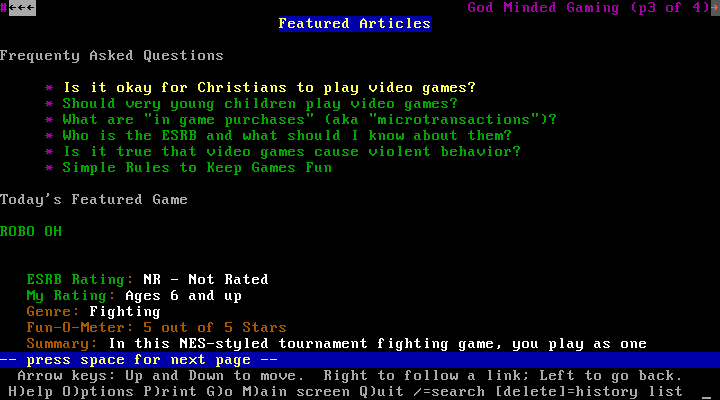
LYNX displaying a familiar looking website
Navigation in LYNX is done through the arrow keys, SPACE bar, and various other single key shortcuts. There's no mouse support, but it's not like a mouse is really needed to use the internet like this anyway.
Of course, the biggest downside of using LYNX is that a large portion of the modern internet hasn't been made accessible to alternative web browsers, including this one. This is a serious problem, because if a website doesn't work with something like LYNX, it probably won't work with the assistive devices that people with disabilities rely on.
Where to Go From Here
FreeDOS comes with a handful of free games, including FreeDOOM, several puzzle games, and a handful of tetris clones. If you've installed them, you'll find them in the C:\GAMES directory.
That said, you'll have a better time with FreeDOOM if you use the version that's native to your real operating system - the FreeDOS version is perfectly playable within a virtual machine, but in my opinion, it's not ideal.
Other useful programs are included with the operating system, so feel free to experiment and try them out. There's also a bonus disc with extra software that you can download from https://freedos.org .
.
Lastly, additional tips and information about FreeDOS can be found at https://help.freedos.org.
Or, ff you'd like a LYNX-compatible command reference, one can be found at https://help.fdos.org.
That said, you'll have a better time with FreeDOOM if you use the version that's native to your real operating system - the FreeDOS version is perfectly playable within a virtual machine, but in my opinion, it's not ideal.
Other useful programs are included with the operating system, so feel free to experiment and try them out. There's also a bonus disc with extra software that you can download from https://freedos.org
.Lastly, additional tips and information about FreeDOS can be found at https://help.freedos.org
.
Or, ff you'd like a LYNX-compatible command reference, one can be found at https://help.fdos.org
.