Running old Windows Programs with WINE and WineVDM
An Introduction to WINE
The first versions of Microsoft Windows were hardly more than graphical overlays for DOS, but they made an impact on a generation. As Windows developed, it moved with the technology available, shifting from these early 16-bit computers to the more powerful 32-bit systems, and more recently, 64-bit systems.
However, when the jump to 64-bit was made, Microsoft decided to quietly retire support for the now ancient 16-bit code. Thus, modern Windows computers aren't able to run most of the games and other programs that kids of the 1990s remember.
At the same time, many people have chosen to make Linux their operating system of choice. Since programs are only able to run on the operating systems they were designed for, anyone who switched to Linux was forced to abandon their familiar tools and hope there was a Linux equivalent.
Both groups have the same core issue - they want to run software that their operating system just doesn't understand. Thanks to several clever programmers, we now have a pair of tools to fix this problem.
WINE came first. It's a tool that allows Linux computers to run Windows programs. WINE also doesn't care what version of Windows the program was meant for, so it can run those old 16-bit programs just as easily as the newer 32-bit or 64-bit ones.
In 2023, another programmer did the unthinkable and ported WINE to Windows. This tool, known as WineVDM, is designed to specifically provide the old 16-bit support that modern Windows lacks.
For those of us interested in retro gaming, these tools are practically a necessity, as they're the primary way for us to run the classic Windows games we love. Of course, neither tool is perfect, and there are going to be games that they can't run, but the list of titles that do work is gigantic.
On this page, I'll explain how to set up and run WINE and WineVDM on your own computer, beginning with WineVDM, as most of you are probably running a version of Windows.
However, when the jump to 64-bit was made, Microsoft decided to quietly retire support for the now ancient 16-bit code. Thus, modern Windows computers aren't able to run most of the games and other programs that kids of the 1990s remember.
At the same time, many people have chosen to make Linux their operating system of choice. Since programs are only able to run on the operating systems they were designed for, anyone who switched to Linux was forced to abandon their familiar tools and hope there was a Linux equivalent.
Both groups have the same core issue - they want to run software that their operating system just doesn't understand. Thanks to several clever programmers, we now have a pair of tools to fix this problem.
WINE came first. It's a tool that allows Linux computers to run Windows programs. WINE also doesn't care what version of Windows the program was meant for, so it can run those old 16-bit programs just as easily as the newer 32-bit or 64-bit ones.
In 2023, another programmer did the unthinkable and ported WINE to Windows. This tool, known as WineVDM, is designed to specifically provide the old 16-bit support that modern Windows lacks.
For those of us interested in retro gaming, these tools are practically a necessity, as they're the primary way for us to run the classic Windows games we love. Of course, neither tool is perfect, and there are going to be games that they can't run, but the list of titles that do work is gigantic.
On this page, I'll explain how to set up and run WINE and WineVDM on your own computer, beginning with WineVDM, as most of you are probably running a version of Windows.
Using WineVDM (Windows)
Installing WinVDM
WineVDM can be downloaded for free from its github homepage .
.
While github is a reputable website, it's primarily aimed at developers, and therefore can be difficult to navigate if you're not familiar with how the website works.
There are actually two links to WineVDM's download page. The first, and the one that's built in to the github template, is on the right, under the heading "Releases". As of this writing, the link reads v0.9.0.
The other link is further down the page, buried under a lot of technical things and an image of a calculator. It reads "Download stable version".
It doesn't matter which link you use, as they both send you to a page with more information about the release. You can ignore most of this - just click on the bigger "Download otvdm-(numbers).zip" link to download WineVDM.
When the download is finished, extract the contents of the zip file to some other folder on your computer - somewhere that's out of the way yet easy to access, like C:\WineVDM. Once that's done, open the folder and double click the "install" shortcut.
While nothing will appear to happen, this quickly configures your copy, and you're ready to start using WineVDM.
.While github is a reputable website, it's primarily aimed at developers, and therefore can be difficult to navigate if you're not familiar with how the website works.
There are actually two links to WineVDM's download page. The first, and the one that's built in to the github template, is on the right, under the heading "Releases". As of this writing, the link reads v0.9.0.
The other link is further down the page, buried under a lot of technical things and an image of a calculator. It reads "Download stable version".
It doesn't matter which link you use, as they both send you to a page with more information about the release. You can ignore most of this - just click on the bigger "Download otvdm-(numbers).zip" link to download WineVDM.
When the download is finished, extract the contents of the zip file to some other folder on your computer - somewhere that's out of the way yet easy to access, like C:\WineVDM. Once that's done, open the folder and double click the "install" shortcut.
While nothing will appear to happen, this quickly configures your copy, and you're ready to start using WineVDM.
Running Programs with WineVDM
This really couldn't be easier. Once you've run the "install" program, all you need to do is try to run your old program. If it's a 16-bit program, WineVDM will simply jump in and take over.
No fancy menus, no command line tricks, no nothing - just start your old program however you normally would.
No fancy menus, no command line tricks, no nothing - just start your old program however you normally would.
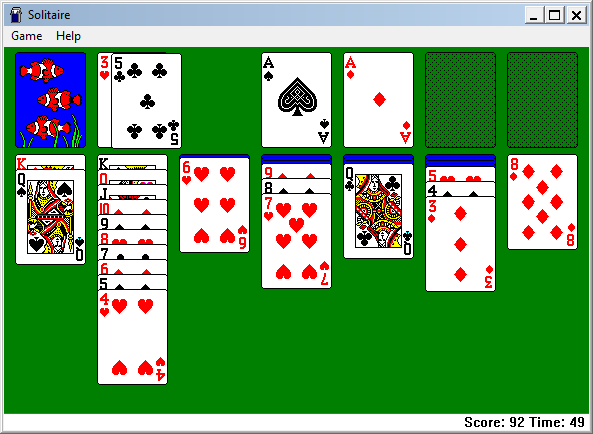
Sol.exe running on Windows 11 using WineVDM
Configuring WineVDM
Unfortunately, WineVDM currently lacks a user friendly configuration tool. Instead, you need to open otvdm.ini in a text editor and manually tweak things.
On the plus side, the defaults seem to work well enough.
On the plus side, the defaults seem to work well enough.
Using WINE (Linux)
Installing WINE
Linux traditionally handles software via dedicated package managers, and since WINE is a very popular tool, it shouldn't be surprising to hear that most distros already have it in their repository.
So, if you want to install it, you can typically do so just by entering the command sudo apt install wine in your terminal.
On occasion, WINE's components are broken up into smaller packages. When this happens and your copy of WINE is missing a component needed to run a program, it'll let you know and suggest the name of the missing package. This can be a bit annoying at first, but once everything's installed you won't need to do it again.
So, if you want to install it, you can typically do so just by entering the command sudo apt install wine in your terminal.
On occasion, WINE's components are broken up into smaller packages. When this happens and your copy of WINE is missing a component needed to run a program, it'll let you know and suggest the name of the missing package. This can be a bit annoying at first, but once everything's installed you won't need to do it again.
Running Programs with WINE
When you install WINE, it might tell your operating system to let it handle .exe files. If this is the case, you can run your Windows software by double-clicking on the .exe file.
Otherwise, you'll need to open the program's folder in a terminal and enter wine my_program.exe (replacing "my_program.exe" with the name of the program you want to run).
If you plan on running this program a lot, it might be useful to create a shortcut that runs this command. How you do that depends on your specific distro and is beyond the scope of this page.
Otherwise, you'll need to open the program's folder in a terminal and enter wine my_program.exe (replacing "my_program.exe" with the name of the program you want to run).
If you plan on running this program a lot, it might be useful to create a shortcut that runs this command. How you do that depends on your specific distro and is beyond the scope of this page.
Configuring WINE
Unlike WineVDM, WINE comes with a nifty graphical tool to configure it. To launch this tool, enter winecfg at the terminal.
WINE normally runs Windows programs in their own windows, making them feel less like an intruder and more like a normal Linux program. When the option labeled "Emulate a virtual desktop" is checked, WINE will instead run them in a single big window that looks like a Windows virtual machine. This pretend desktop is even complete with its own start menu and taskbar.
You'll need to enable this feature occasionally, as some retro games (like Castle of the Winds) won't start properly without the desktop behind them.
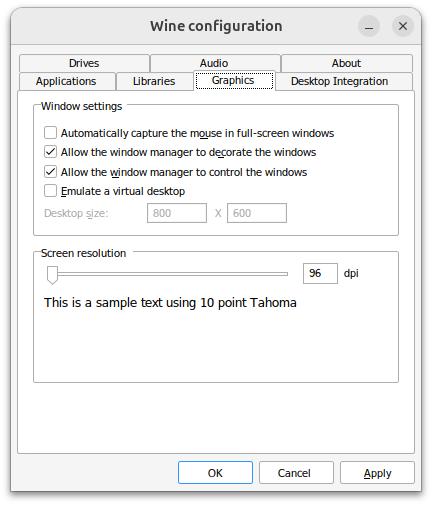
winecfg running on Ubuntu Linux
WINE normally runs Windows programs in their own windows, making them feel less like an intruder and more like a normal Linux program. When the option labeled "Emulate a virtual desktop" is checked, WINE will instead run them in a single big window that looks like a Windows virtual machine. This pretend desktop is even complete with its own start menu and taskbar.
You'll need to enable this feature occasionally, as some retro games (like Castle of the Winds) won't start properly without the desktop behind them.
Final Notes
As useful as these tools are, it's important to keep in mind that neither of them are perfect. There will always be programs that won't run, no matter how you tinker with WINE's settings.
To help with this, WineHQ maintains a database of programs that have been tested with different versions of WINE. This shows how well they functioned, and lists any tricks that were needed to get them working.
Another thing to remember is that the early days of Windows gaming were also the days of shovelware. In other words, the average Windows program was very poorly made and often very low quality. It's not always worth the effort of getting them running again - I'd even go so far to say that some of the fondly remembered classics are simply the games that ran well compared to the many, many games that didn't.
To help with this, WineHQ
maintains a database of programs that have been tested with different versions of WINE. This shows how well they functioned, and lists any tricks that were needed to get them working.Another thing to remember is that the early days of Windows gaming were also the days of shovelware. In other words, the average Windows program was very poorly made and often very low quality. It's not always worth the effort of getting them running again - I'd even go so far to say that some of the fondly remembered classics are simply the games that ran well compared to the many, many games that didn't.